Originally published on TrustedSec on 2020-04-09. Written by Oddvar Moe.
As a Red teamer, the key to not getting detected is to blend
in. That means that if I need to spawn a new process on a host, it is important
that it looks legitimate with command line parameters that look correct. Many
system binaries have a set of parameters when they are executed. This blog post
will cover how to find process command line parameters on a typical Windows
setup.
Enabling logging
First, you will need to make sure you have enabled logging correctly. You could either configure Sysmon to gather this information or enable process auditing in Windows. For Sysmon, I encourage you to have a look at our community guide here:
https://github.com/trustedsec/SysmonCommunityGuide
In this post, I will cover the steps necessary to get
process auditing and command line logging configured. If the machine you are
doing this on is not in a domain, you can use the local Group Policy by running
gpedit.msc. However, if the computer is part of a domain, I would recommend
that you use the same settings in a Group Policy. Hopefully you already have
this set up to log executed commands on your systems.
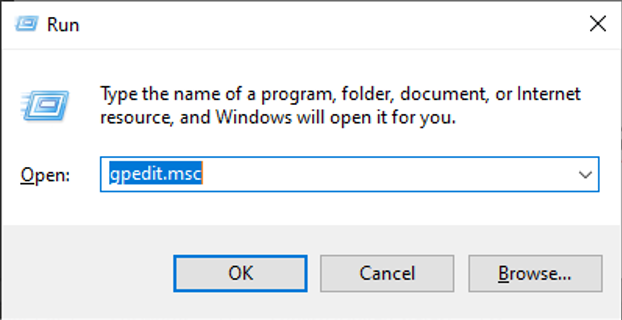
Start gpedit.msc from run in Windows.
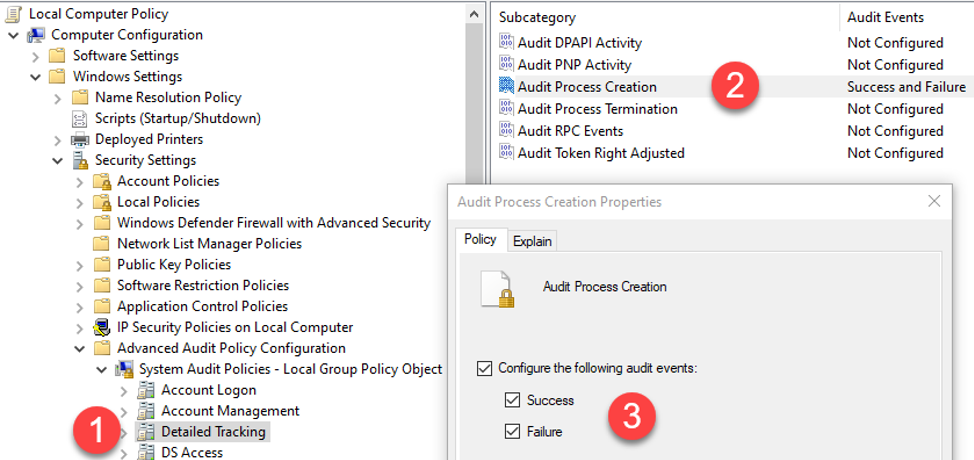
Set up the process auditing settings with both success and
failure. That setting is found under Computer Configuration > Windows
Settings > Security Settings > Advanced Audit Policy Configuration >
Detailed Tracking and is called Audit Process Creation.
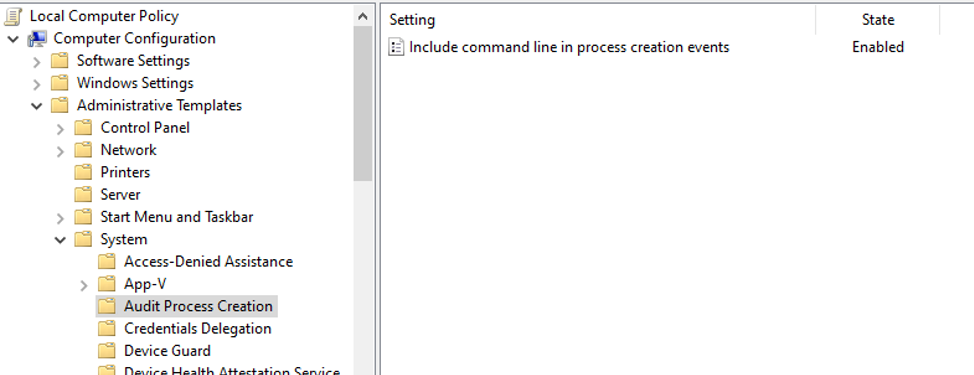
The command line parameters also need to be audited. That
setting is found under Computer Configuration > Administrative Templates >
System > Audit Process Creation and is called Include command line in
process creation events. Enable that setting.
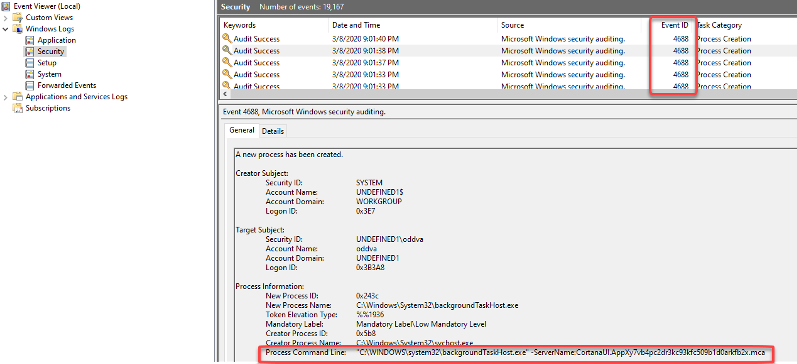
Your Windows client should now start logging the security
event 4688 every time you start a new process.
Now you would typically use the computer for a few days so
that you have all the typical binaries and command line parameters in the event
log.
Getting the Command Lines
Next, gather these command line parameters in a useful way
so you can see what is normally executed. I prefer to use the newly created PSGumshoe
function, Get-EventProcessCreate. The PSGumshoe module can be found here:
https://github.com/PSGumshoe/PSGumshoe
First you need to clone the project or download it using the
download button on the project page. After you have either cloned it or
unpacked it, you need to start a PowerShell console elevated (run as
administrator) and then you can import the module with:
Import-module .\PSGumshoe.psm1

Next, you can run the following commands to get the command lines
with a count:
$FormatEnumerationLimit =-1

Get-EventProcessCreate -NewProcessName "C:\windows\system32\svchost.exe" | Select-Object CommandLine | Group-Object -Property CommandLine -NoElement | Sort-Object -Property Count -Descending | format-table -AutoSize
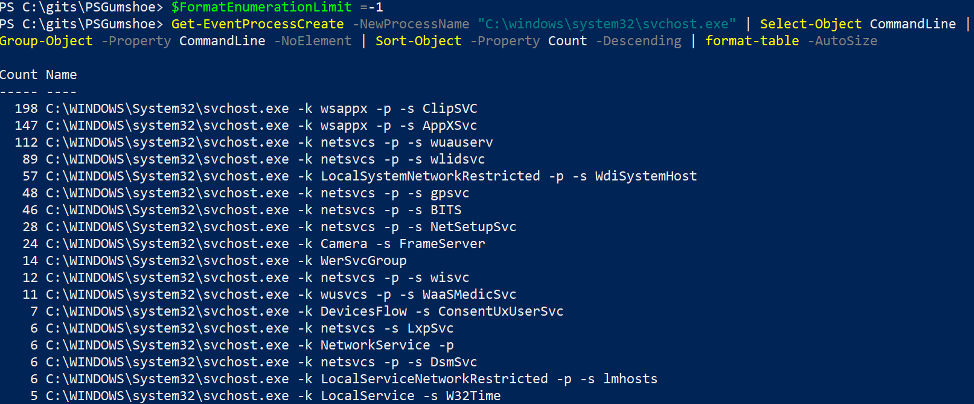
The $FormatEnumerationLimit is set just so the output
is not truncated. To undo it, you can run $FormatEnumerationLimit=4
There you have it—a nice way to identify those command line
parameters so you can more easily blend into the environment as a Red Teamer.

